Test Suites
Overview
Test Suites are the core building blocks of your Voiceflow testing workflow. They define collections of tests that validate your agents against expected behaviors and responses.
What is a Test Suite?
A Test Suite is a JSON-formatted definition that contains: - Test Configuration: API keys, environment settings, and Voiceflow project details - Test Cases: Individual test scenarios with user inputs and expected agent responses - Validation Rules: Criteria for determining test success or failure - Session Management: Control whether tests share the same user session or use isolated sessions
Creating Test Suites
Method 1: Manual Entry
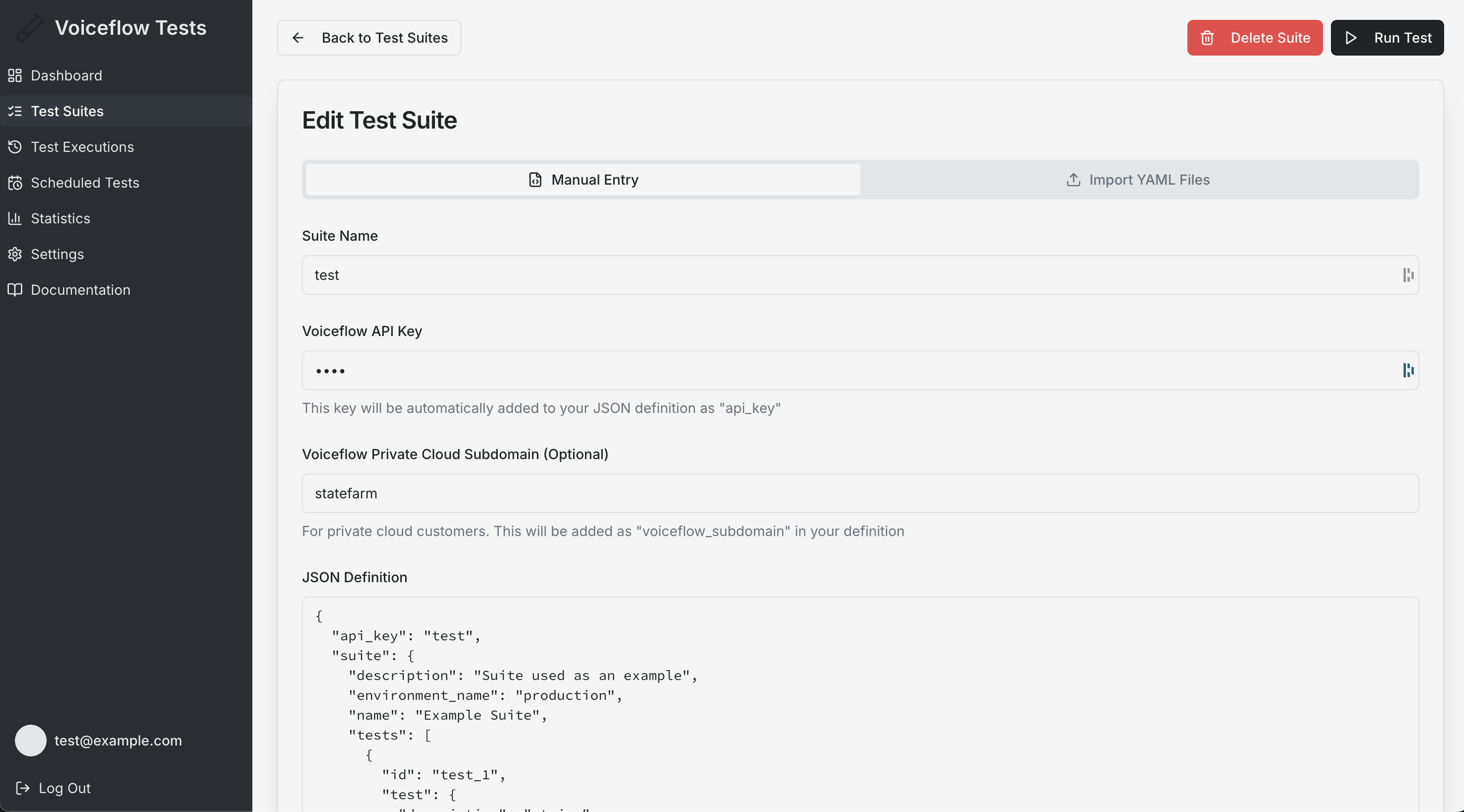
- Navigate to Test Suites in the sidebar
- Click "Create New Suite"
- Choose the "Manual Entry" tab
- Fill in the required information:
- Suite Name: A descriptive name for your test suite
- Voiceflow API Key: Your Voiceflow project API key (format: VF.*****.*****)
- Voiceflow Subdomain (Optional): For private cloud customers
- JSON Definition: The complete test definition in JSON format
Method 2: Import YAML Files
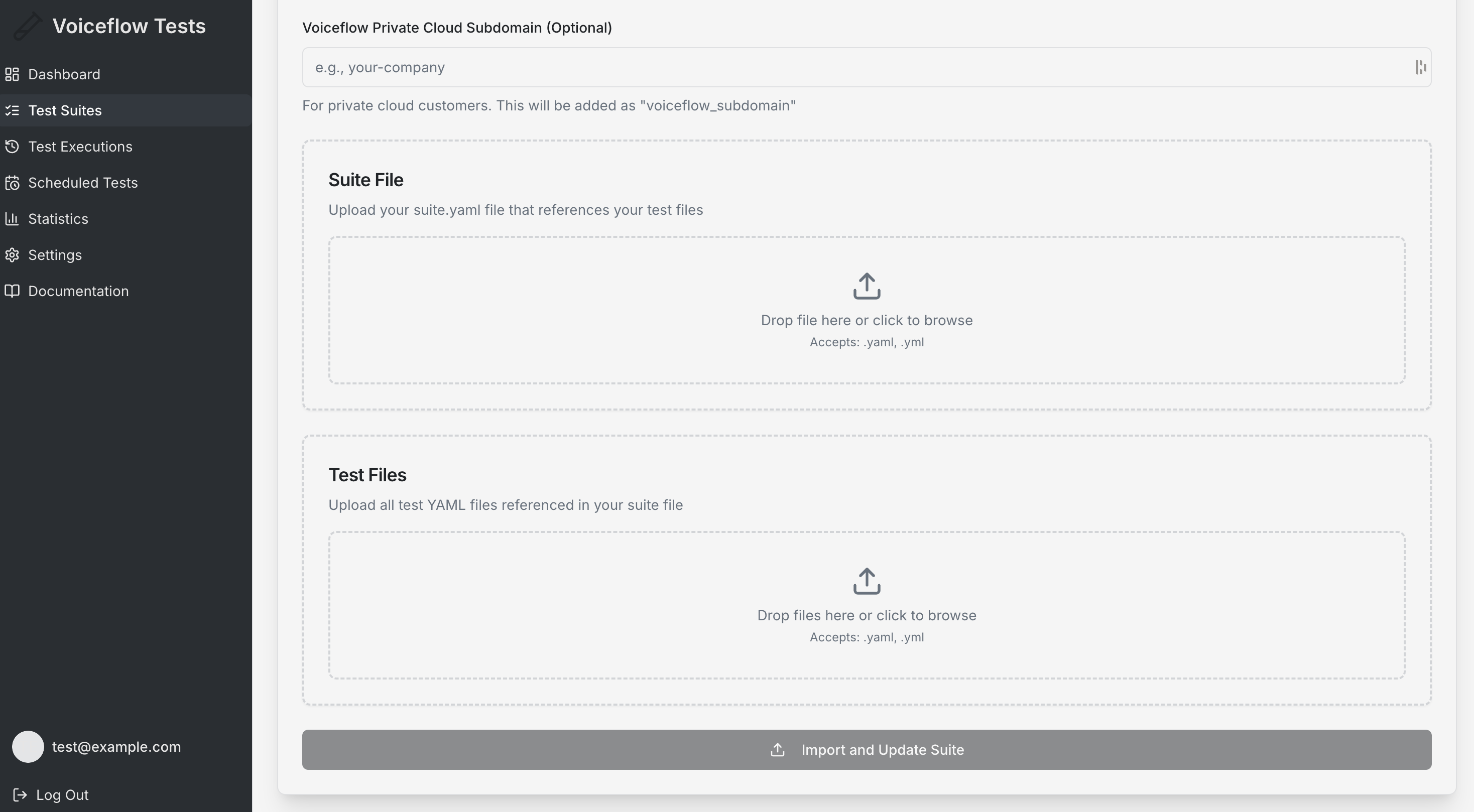
- Navigate to Test Suites → "Create New Suite"
- Choose the "Import YAML Files" tab
- Upload your files:
- Suite File: Your main
suite.yamlfile - Test Files: All referenced test YAML files
- The system automatically converts YAML to JSON format
- Review the imported data before saving
Supported File Structure
Required Files
The YAML import feature expects the standard Voiceflow CLI file structure:
Suite File (suite.yaml or suite.yml)
Individual test case files referenced in the suite. You can find more details on the Suite Reference page.
Test Files (individual .yaml/.yml files)
Individual test case files referenced in the suite. You can find more details on the Test Reference page.
Managing Test Suites
Viewing Your Test Suites
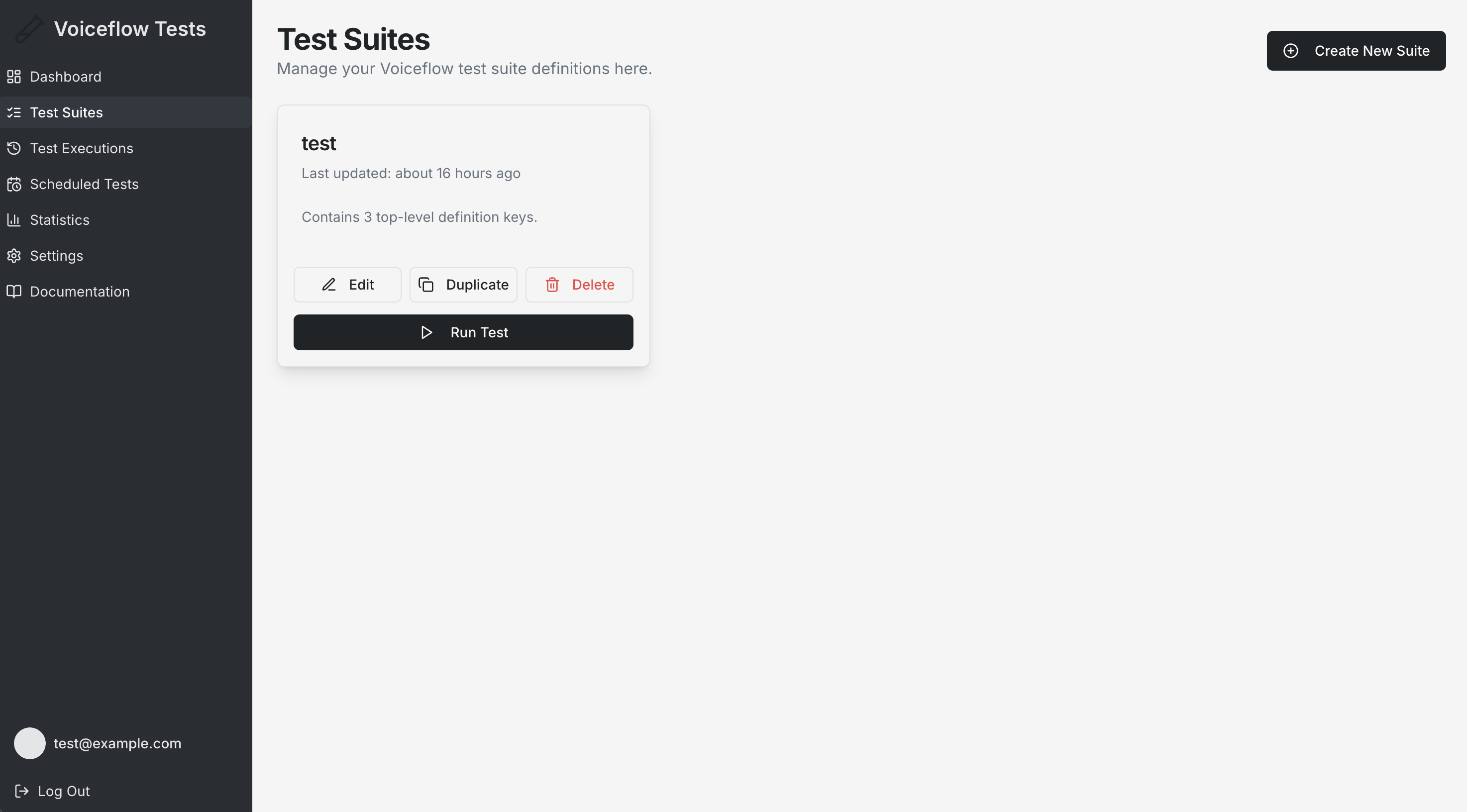
- Suite List: All your test suites are displayed as cards with key information
- Last Updated: See when each suite was last modified
- Quick Actions: Run, edit, duplicate, or delete suites directly from the list
Suite Actions
- Run Test: Execute the test suite immediately
- Edit: Modify the suite configuration and test definitions
- Duplicate: Create a copy of an existing suite for modification
- Delete: Permanently remove a test suite (requires confirmation)
Test Suite Structure
For more details on the JSON structure, refer to the Test Suite JSON Schema.
Session Management
Test suites support session management through the new_session_per_test field:
{
  "name": "Example Suite",
  "description": "Test suite with isolated sessions",
  "environment_name": "production",
  "new_session_per_test": true,
  "tests": [...]
}
Session Behavior:
false(default): All tests share the same user session- Variables persist across tests
- Conversation context carries over between tests
-
Tests execute sequentially with shared state
-
true: Each test gets a fresh user session - New user ID generated for each test
- Complete isolation between tests
- No shared context or variables
When to use isolated sessions: - Testing independent scenarios that shouldn't affect each other - Validating conversation flows from a fresh start - Ensuring tests don't have hidden dependencies on execution order
API Integration
Test suites integrate with the Voiceflow API for execution:
- Execution Endpoint: Tests are submitted to the Voiceflow Dialog Manager API
- Status Monitoring: Real-time status updates during test execution
- Results Retrieval: Detailed logs and results are fetched after completion
Validation Types
Your tests can use various validation methods:
- Exact Match: Response must exactly match expected text
- Contains: Response must contain specific text
- Regex: Response must match a regular expression pattern
- Similarity: Response must be semantically similar (AI-powered)
- Variable Check: Validate specific variables are set correctly